A crumpled fuel receipt in your pocket, a PDF invoice for software sitting in your inbox, a paper receipt from your accountant on the desk. How do you get all of it into your records without spending an hour retyping numbers into a spreadsheet? Taxorio offers four routes — each suited to a different moment. All four hand the reading over to AI.
Way 1: drop a file from your computer
The most common case: a PDF invoice for hosting, software or consulting arrives by e-mail. You download it, drop it into Taxorio, and the supplier, IČO (business ID), amount and VAT rate come back filled in.
How it works
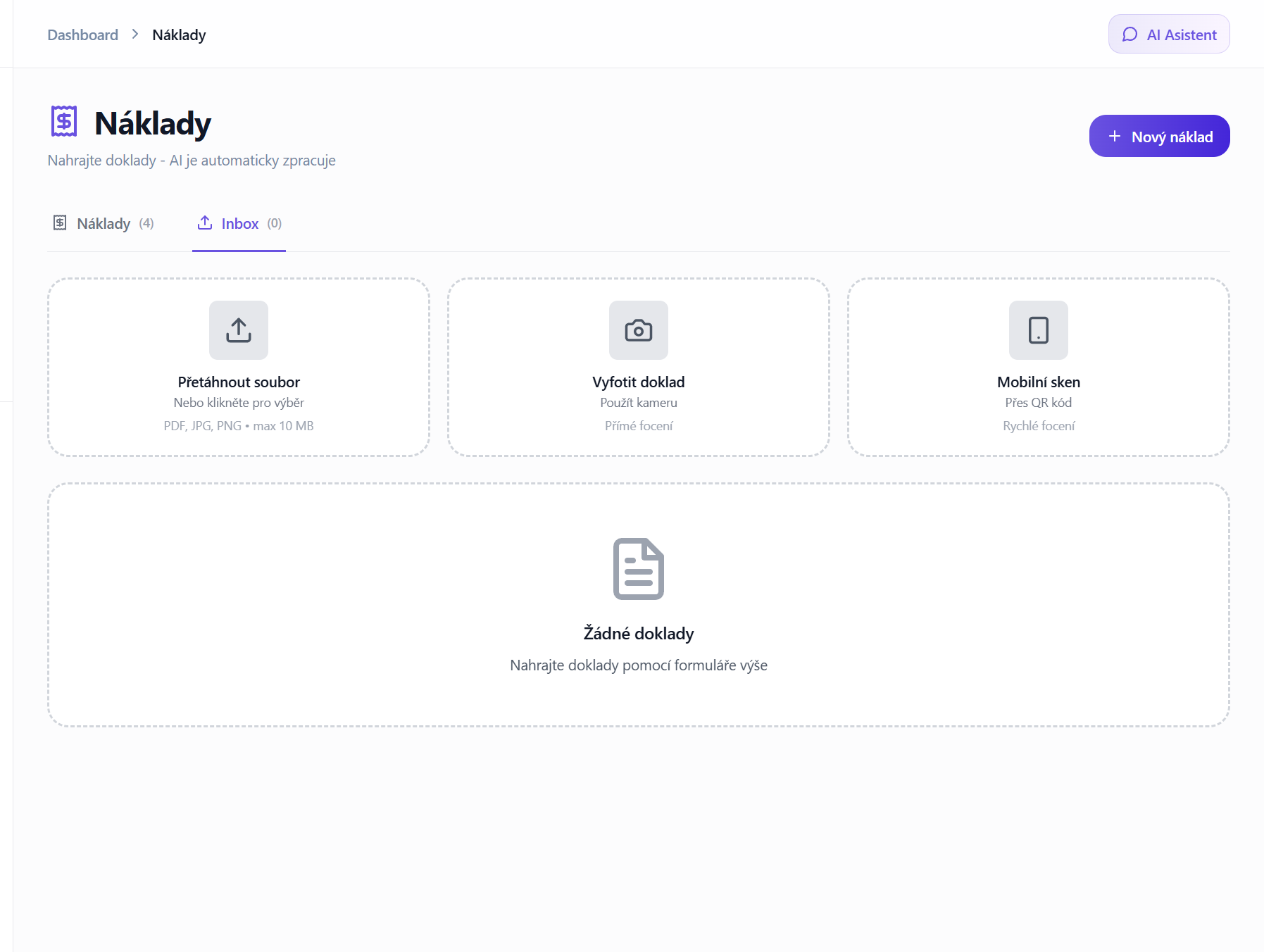
In Expenses → Inbox you will find the upload zones. Click the first one — Upload a file — or simply drag the file into the marked area. Taxorio accepts:
- PDF — the usual format for invoices from e-shops, suppliers or your e-mail
- JPG, PNG, WebP and HEIC — screenshots, scans and photos straight from a phone
- ISDOC — the Czech electronic invoice format, read as structured data rather than as a picture
The size limit is 50 MB per file, which is more than enough even for a high-resolution scan. There is also an Upload a folder zone if you have a whole directory of scans to get through in one go.
When to use it
Whenever the file is already on your computer. Invoices from e-shops, PDFs from e-mail, screenshots of payment confirmations — this is the shortest path from file to confirmed expense.
Way 2: take a photo in the browser
Sitting at your computer with a paper document in front of you? You need neither a scanner nor your phone. Taxorio can open the camera inside the browser and photograph the document on the spot.
How it works
Click the second zone — Take a photo. The browser asks for camera access, which you confirm once. A live preview from your device's camera opens. Put the document in frame, wait for focus, and press the capture button.
Taxorio compresses the captured image to a size suited to AI processing — enough resolution for accurate reading, without inflating the file.
When to use it
Good for paper documents when you are at a computer with a camera or a webcam attached. Till receipts, handwritten slips, printouts — photograph and move on. On a laptop with a camera above the screen it works without fuss.
Way 3: scan with your phone via a QR code
No mobile app to install. No syncing. A QR code, a phone and its camera, and the documents appear in your records on their own.
How it works
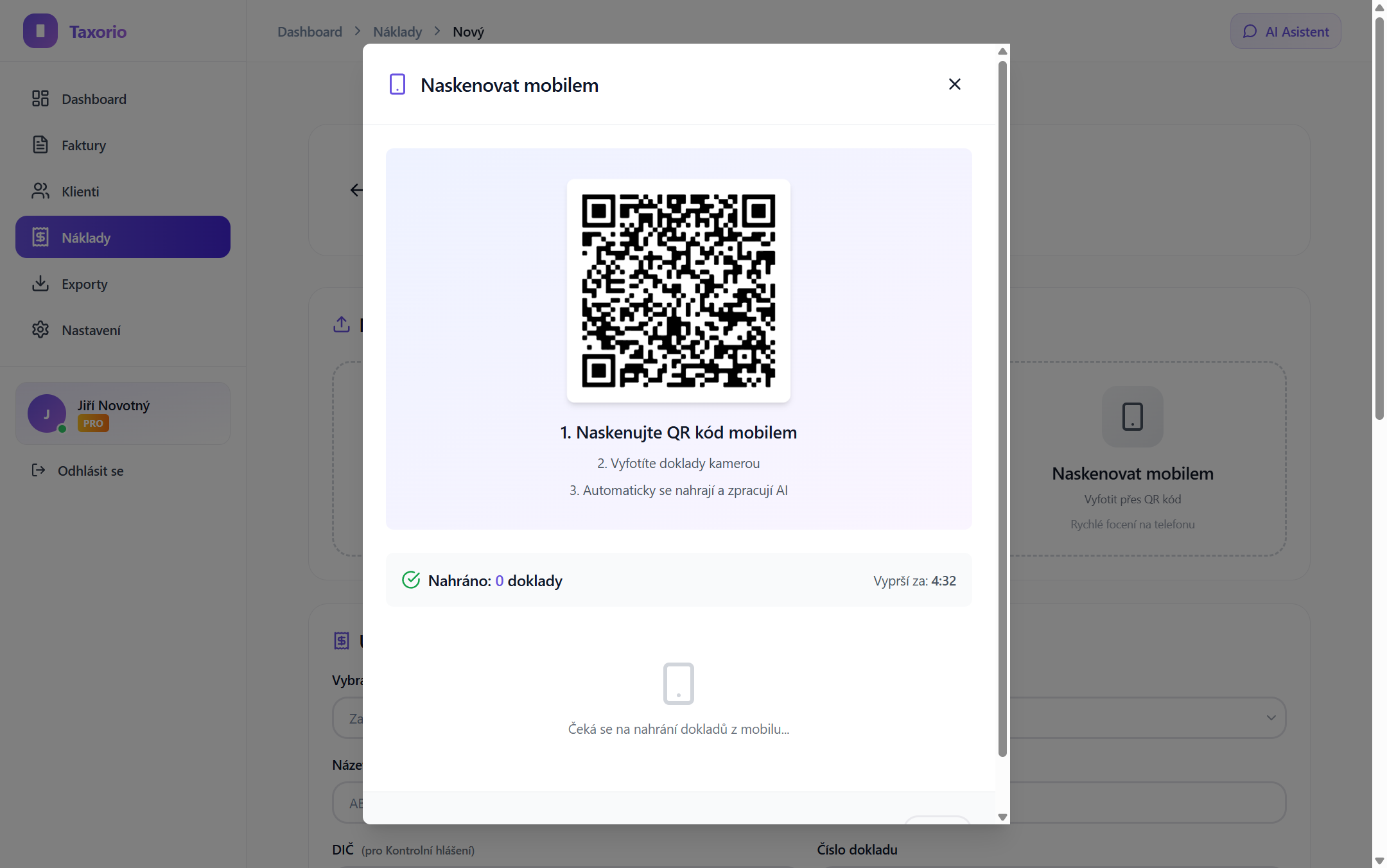
Click the third zone — Mobile scan. A QR code appears on screen. Open the camera on your phone (iPhone and Android both have a built-in scanner; no extra app needed) and point it at the code. A mobile page built for photographing documents opens.
From there you photograph the documents one after another. Each shot is sent to Taxorio immediately and starts its own AI processing — you do not wait for the pile to finish. A single session accepts up to 100 uploads.
Security
The QR code carries a one-time access token with 256 bits of entropy. The token travels only in the URL fragment — the part after the hash — which browsers never send in HTTP headers. Taxorio's database stores only its SHA-256 hash, never the token itself. A session expires after 5 minutes of inactivity, and at the latest 60 minutes after it was created.
When to use it
This is the route for everything else. A month's worth of paper receipts to clear? Sitting in the car after filling up? Handed a slip by a tradesperson? Scan the code and carry on — no retyping, no scanner, no app.
Tip: leave the QR page open while you work through a stack of old documents. Every new photo extends the session, so it stays open as long as you keep shooting.
Way 4: forward the document by e-mail
The supplier's invoice is already in your e-mail and you would rather not download and re-upload it? In Settings → Documents by email (PRO plan) you switch on your own collector address in the form doklady-xxxxxxxxxxxx@taxorio.cz. Forward the invoice — as an attachment, or even written in the body of the message — and the AI extracts it into your inbox exactly as if you had uploaded it by hand.
When to use it
Best for documents suppliers send you directly: hosting, software, your phone operator, statements from a client. Nothing to download, nothing to find on disk — you just hit forward.
For the settings, permitted senders and limits, see the separate article on the collector e-mail for documents.
What the AI reads — and how precisely
All four routes lead into the same process after upload: a Google Gemini Flash model analyses the document and extracts structured data.
From the document the AI pulls:
- Supplier name — company or trader's name
- IČO — the business ID, normalised to 8 digits
- DIČ — the VAT identification number, needed for the control report
- Total amount — including VAT, in the document's original currency
- VAT base and tax amount — the breakdown your VAT return needs
- VAT rate — 21%, 12% or 0%
- Issue date and DUZP — the date of taxable supply, which decides the VAT period the document belongs to
- Document number — invoice number or variable symbol
- Expense category — automatic classification into one of Taxorio's categories (software, hardware, travel, fuel, rent and so on)
- Document type — invoice, receipt, credit note or proforma
The model is prompted specifically for Czech tax documents, so it copes with standard till receipts, e-shop invoices and handwritten slips. If the document is a credit note it recognises that and shows negative values.
The confidence score
Every processed document carries a confidence figure from 0 to 100 — how certain the AI is that it read the document correctly. The inbox colour-codes it, and the number matters in practice:
90 and above
Typically a printed invoice with a standard layout. Confirm it with one click.
80 to 89
Still counted as ready. A quick glance is worth it; ambiguous digits in amounts and unusual company names live in this range.
Below 80
The document goes to the review queue rather than the ready queue. Somewhere between poor print quality, handwriting and a non-standard layout, the model was not sure — compare the data against the original and correct what is wrong. The lower the score, the more likely the cause is a blurred photo, bad lighting or a document in a language the layout does not match; below roughly 50 it is usually quicker to retake the photo than to correct the fields.
Bulk confirmation: dozens of documents in one click
Processing a batch? Use Confirm all ready in the inbox. It creates expenses from every document whose confidence is 80 or above. Anything below that stays in the list until you have checked it yourself.
An example: you upload 20 receipts from a business trip and the AI reads 16 of them at 80 or above. One click creates 16 expenses; you look at the remaining four individually.
Duplicate detection
As each document is processed, Taxorio compares it against the expenses already in your records. The check runs on the document number together with the supplier name or IČO. If it finds a potential duplicate it flags the document with a link to the similar record, and you decide whether it really is a duplicate or another document from the same supplier. Uploading the very same file twice is caught separately, by the file's own hash.
Getting the best results
Photographing with a phone
- Lay the document on a flat surface. Creased or folded paper reads worse.
- Shoot in good light. Daylight is best; direct sun casting hard shadows is the worst.
- Keep the edges visible. The whole document has to be in frame — a cropped corner may be where the invoice number or IČO was.
- Avoid glare. With glossy till receipts, angle the paper so it does not reflect the light.
- Wait for focus. A blurred photo costs a lot of accuracy; the phone signals focus with a flash of the frame or a haptic tick.
Uploading PDFs
- A native PDF beats a scan every time. If the invoice is a text PDF rather than a scanned image wrapped in PDF, the AI reads it most accurately.
- One document, one file. Do not scan several documents into a single PDF — process each one separately.
Limits on AI processing
How many documents get processed automatically depends on your plan:
- FREE plan — 5 AI reads a month. Enough for a low volume of paperwork, or to try the feature out.
- PRO plan — 150 AI reads a month. For active sole traders processing dozens of documents regularly.
The remaining count is shown in the inbox, and the counter resets on the 1st of each month. Once the FREE allowance is gone you can still enter documents by hand, within the FREE plan's monthly limit on recorded expenses, or move to PRO.
When the AI fails
Occasionally processing fails — a temporary outage, or a genuinely difficult document. Taxorio retries automatically: three attempts, spaced 5 seconds, 30 seconds and 2 minutes apart. If all three fail, a Try again button appears so you can start a fresh attempt yourself. In the worst case you type the data in manually; the original file stays attached to the expense either way.
Which route to choose
- A downloaded file on your computer → drop it in
- Paper in front of a computer with a camera → photograph it in the browser
- A receipt on the road, a stack of paper, no computer nearby → QR code and phone
- An invoice the supplier e-mailed you → forward it to the collector address (PRO plan)
All four end in the same place: a document in your records with the fields filled in, waiting to be confirmed. The only difference is where the document came from and where you happen to be.
Taxorio scope: Taxorio provides invoicing and income/expense records for Czech sole traders. It is not full accounting or personalised tax advice. For an unsupported or unusual case, verify the treatment with a Czech accountant or tax adviser before filing.