Issuing invoices is the most repetitive part of running a business in Czechia, and also where a small mistake costs the most time later. This guide walks through the whole process in Taxorio, from choosing the client to the generated PDF with a payment QR code. It assumes you are registered as an OSVČ, the Czech term for a self-employed person.
Before you start: what to have ready
Fill in your own details before the first invoice. You need:
- Business details — your trading name or your own name as an OSVČ, your IČO (the Czech business identification number) and, if you are a VAT payer or an identified person, your DIČ (tax identification number).
- Business address — street, postcode and city.
- Bank details — account number and bank code, optionally IBAN and BIC/SWIFT.
- At least one client in your client list.
If any of that is still missing, start with the Taxorio setup guide, which goes through the whole configuration.
Step 1: Sign in
Open app.taxorio.cz and sign in with a Google account or with your e-mail address and password. You arrive at the dashboard with an overview of your income, expenses and unpaid invoices.
Step 2: Open the invoice form
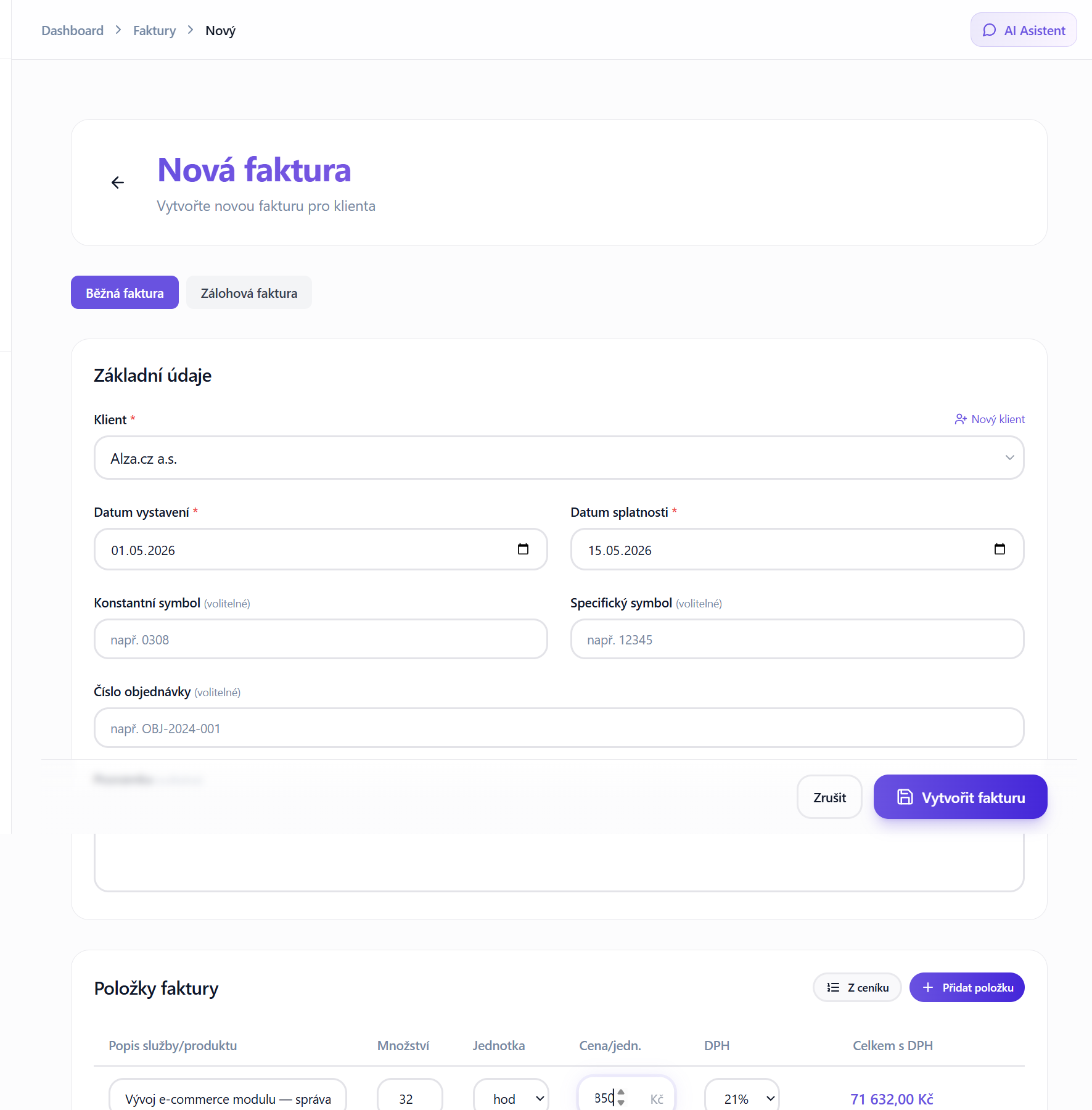
Select Invoices in the left-hand menu, then use the New invoice button at the top of the page. The form opens with your own supplier details already applied.
Step 3: Choose the client
The first field is the client. Taxorio uses a searchable drop-down: start typing a company name, an IČO or a person's name and the matching records from your client list appear. If the client is not saved yet, you can add one straight from the invoice form — entering a Czech IČO lets Taxorio look the company up in ARES, the Czech register of economic subjects, and prefill the name, registered address, DIČ and legal form.
Why the client record matters
The saved details are copied onto the invoice, and the client's country and VAT identification also drive which supply regime Taxorio offers you: a domestic supply, a supply to a business in another EU country, or an export. A DIČ listed in ARES does not by itself prove that the customer is a full VAT payer, so confirm the status whenever the tax treatment depends on it.
Step 4: Issue date, DUZP and due date
- Issue date — prefilled with today. Change it when you are invoicing work delivered in a previous month.
- DUZP — the date of the taxable supply. It follows the issue date unless you set it separately.
- Due date — calculated from your default payment term, which is 14 days until you change it in Settings. You can always override it on an individual invoice.
For a VAT payer the DUZP decides which VAT period the document falls into, so it deserves a look rather than a click-through. Taxorio keeps no record of which returns you have already filed, so changing a date on an older document will not prompt you about a supplementary return.
Step 5: Optional details
- Invoice number and variable symbol — assigned automatically, with the option to enter your own on a particular invoice.
- Constant symbol — identifies the type of payment, for example 0308.
- Specific symbol — an additional identifier that some customers ask for.
- Order number — the customer's purchase order reference.
- Note — free text printed on the invoice.
None of these fields are mandatory, but they make payments easier to recognise on your bank statement.
Step 6: Add the invoice items
The items are the substance of the document. For each line you fill in:
- Description — what you delivered, for example “Web application development” or “IT security consulting”.
- Quantity — the number of units, such as 40 hours.
- Unit — chosen from a list: hours, pieces, days, months, years, kilometres, metres, square metres, kilograms or litres. An invoice issued in English prints the English abbreviations.
- Unit price — the price per unit excluding VAT.
- VAT rate — 21% (standard), 12% (reduced) or 0%.
Which rates you may use follows your VAT status rather than your preference. A non-payer and an identified person must not charge Czech VAT on an ordinary sales invoice under § 108(4) of the VAT Act, so Taxorio keeps their items at 0%. There is no 10% rate — it was merged into the 12% rate in 2024.
Adding an item from the price list
If you invoice the same service repeatedly, save it once in the price list in Settings with its name, unit, price and VAT rate. The From price list button then inserts it into the invoice and you only enter the quantity. The price list offers a narrower set of units (pieces, hours, days, months, metres, square metres, kilograms); a custom unit cannot be entered either there or on the invoice.
Several items on one invoice
You can add as many lines as the job needs, each with its own unit and VAT rate. Taxorio totals them together.
Step 7: Totals calculated as you type
While you fill in the items, Taxorio recalculates the net amount, the VAT on each line at its own rate, and the total including VAT. Rounding is handled for you, so the printed document and the stored figures agree.
Breakdown by VAT rate
When an invoice mixes rates — some lines at 21% and others at 12% — the document shows a separate row for each rate with its taxable amount and the VAT calculated on it. That is the breakdown you need when filling in the VAT return and the control statement.
Step 8: Save the invoice
When everything is checked, use Create invoice at the bottom of the form. The document is saved with the status Issued, shown as VYSTAVENA in the Czech interface.
Automatic numbering
The number is assigned automatically in the fixed format YYYYXXXX: the current year followed by a sequence number padded to four digits, so the first document of 2026 is 20260001. A VAT invoice needs an identifying number under § 29 of the VAT Act, and a continuous series is easier to explain during an inspection than one with unexplained gaps.
Step 9: The generated PDF
The PDF is generated as soon as you save, and you can download or send it straight away.
Payment QR code
With QR payments switched on and a bank account saved, the PDF carries a payment QR code in the SPD format of the Czech Banking Association; Taxorio derives the IBAN from a Czech account number and bank code. The customer scans it in a banking app, which fills in the account, amount and variable symbol. The code is printed only where paying still makes sense — on an issued or overdue invoice, never on a paid or cancelled document, a credit note or a tax document for an advance received. It saves the customer some typing; it does not collect the money and it is not evidence that payment was made.
Choosing the PDF template
Taxorio has four PDF templates: Aurora, the default for new accounts, Modern with a clean two-column grid, Classic with vertical section labels and a prominent payment strip, and Studio with a vertical colour band carrying the document number. The template, its colour scheme and your logo are set in Settings and apply to every invoice you generate. A template changes presentation only — it does not check that the client, the description or the tax treatment is right.
After issuing: managing the document
- Download the PDF — at any time from the invoice detail.
- Send it — by e-mail from Taxorio, or as a link to the online version of the invoice.
- Record the payment — marking an invoice paid stores the payment date and moves it to Paid.
- Duplicate — a quick start for the next invoice to the same client.
- Edit — possible while the invoice is issued; a new PDF is generated afterwards.
- Cancel — for a document that should never have been issued.
Two limits are worth knowing. Once a payment is recorded the document is locked for editing: clear the payment first, or correct it with a credit note. And payment is recorded as a whole, so a customer who pays half an invoice cannot be captured as such.
Three habits that save time
Build the price list
Every service you invoice more than twice belongs there: you gain speed on the next invoice and consistency in how your work is described.
Set your usual payment term
If you normally agree 30 days rather than 14, change the default once in Settings instead of editing every invoice.
Check the client's details
An outdated address or DIČ surfaces at the worst moment. Re-run the ARES lookup when a long-standing client changes its name or registered seat.
If you already work with an AI assistant, the remote MCP connector in the PRO plan lets you ask for an invoice in a conversation — for example “Create an invoice for client XY for CZK 50,000 for web design”. Read the result before sending it: the assistant fills in what you dictate, including any mistake in it. See the guide to connecting Taxorio to an AI assistant.
Frequently asked questions
Can I issue an invoice without VAT?
Yes, and as a non-payer you have to. The items stay at 0%, the document shows a single total instead of a taxable amount plus VAT, and your DIČ is not printed: a sole trader who is not registered for VAT or as an identified person often has no DIČ at all (since 2024 sole traders no longer register separately for income tax), and even if they have one, it does not belong on a sales invoice.
Can I change the invoice numbering format?
No, the YYYYXXXX pattern is fixed. What you can change is the counter that the next number continues from, in the invoicing section of Settings — useful when you move from another system and want to carry on where it stopped. You can also type a specific number on an individual invoice. Set the counter before you start issuing, because changing it later leaves a gap in the series.
Can I edit an invoice after issuing it?
While the document is still issued, yes, and a new PDF is generated automatically. Once you record the payment it is locked. If the customer already has the original in hand, cancelling and reissuing is cleaner than a silent edit.
How do I issue a credit note?
Open the original document and use Correct document. Taxorio creates a credit note with negative values linked to the original invoice. For a VAT payer, the period the correction falls into is decided by the day you notified the customer of it. A paid invoice cannot be cancelled at all — a credit note is the way to correct it.
The FREE plan covers unlimited invoices for 5 clients; PRO removes the client limit. On either plan the numbering, the arithmetic and the document are Taxorio's job, while the client details, dates and tax treatment remain yours to get right. The help centre article on issuing an invoice covers the same ground in shorter form.
Taxorio scope: Taxorio provides invoicing and income/expense records for Czech sole traders. It is not full accounting or personalised tax advice. For an unsupported or unusual case, verify the treatment with a Czech accountant or tax adviser before filing.