If you invoice the same services or products again and again, you know the feeling: the same item name, the same unit, the same price, typed out once more. With one invoice that is fine; with the tenth this month it is not. The price list in Taxorio takes that away — you set the items up once and then add them to an invoice in a single click.
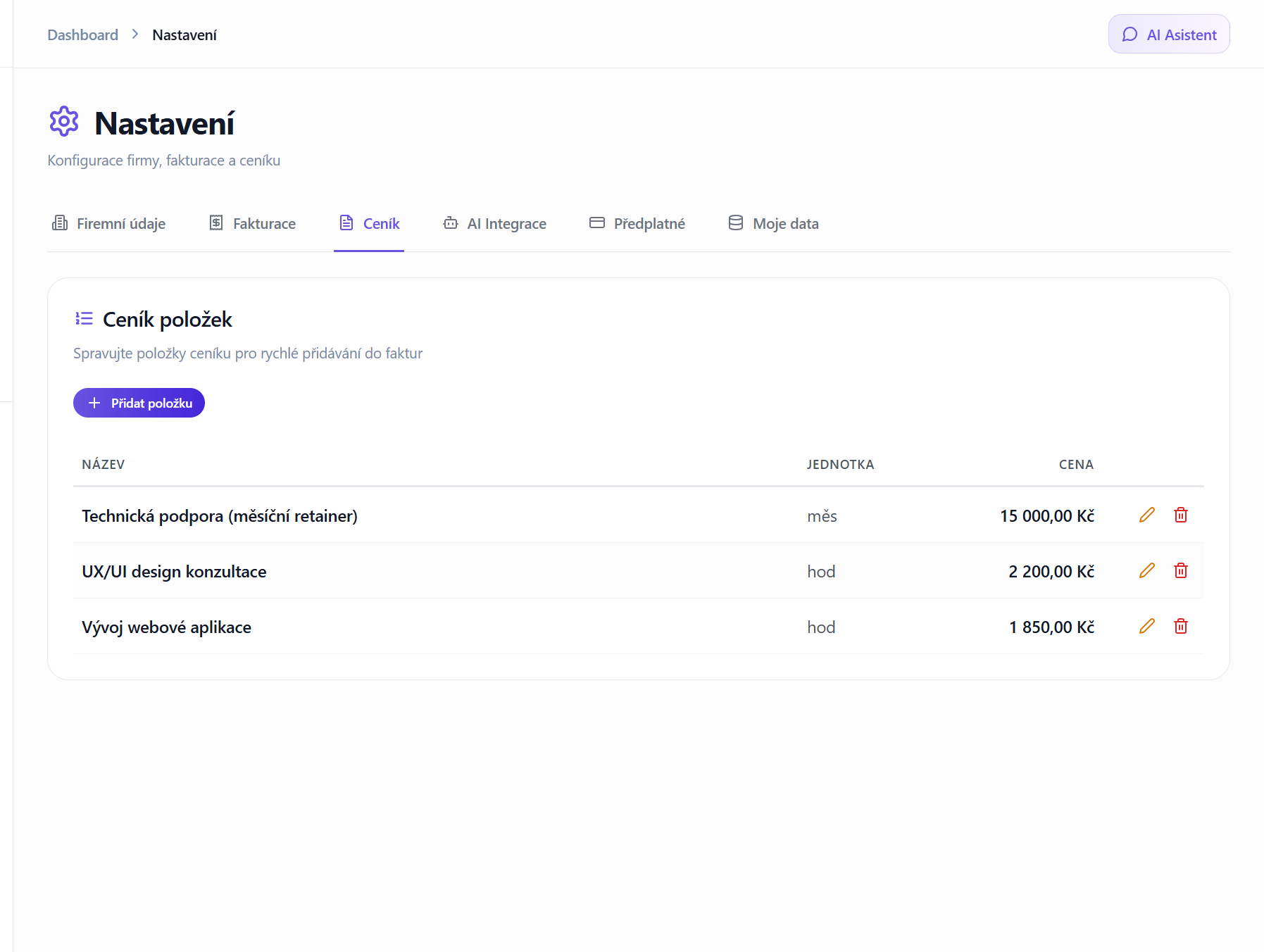
What a price list item is
A price list item is a saved invoice line. Each one holds:
- Name — the description of the service or product as it will appear on the invoice
- Unit — chosen from the units the app offers: ks (piece), hod (hour), den (day), mo (month), m, m² and kg
- Price — the price for one unit in CZK
- VAT rate — only if you are registered for VAT; for a non-payer the rate on the item is always 0 %
When you use the item while creating an invoice, a line is added with the name, unit, price and rate already filled in. You adjust the quantity and anything else that differs.
Where to find the price list
The price list lives in Settings. After you sign in to Taxorio, open the settings and go to the Price list tab. There you see everything you have saved and can add more.
Adding an item
- Open Settings and the Price list tab.
- Click the button to add a new item.
- Fill in the name. Be specific — this text goes on the invoice your client reads. "Consulting on web development" tells them more than "Consulting".
- Pick the unit from the list offered.
- Set the price per unit, excluding VAT. For example 1 500 Kč per hour of consulting.
- Choose the VAT rate if you are registered for VAT.
- Save the item.
It is available on invoices straight away.
Editing an item
Need to change a price or a name? Click the edit icon (the pencil) next to the item in the list. The form opens with the current values for you to change. Once saved, the change applies to newly created invoices — invoices you have already issued are untouched.
Deleting an item
If you no longer need an item, click the delete icon (the bin). Taxorio asks you to confirm, so nothing disappears by accident. Confirming removes it from the price list permanently. Invoices that used the item stay exactly as they are.
Using the price list on an invoice
The point of the price list shows when you issue an invoice:
- Create a new invoice and fill in the customer details, or pick an existing client.
- In the items section, click "From price list" — the button sits above the table of invoice items.
- A dialog opens with your price list, showing every saved item with its name, unit and price.
- Click the item you want — it is added to the invoice immediately.
- The line is prefilled with:
- Description: the item name
- Quantity: 1
- Unit: the unit from the item
- Unit price: the price from the item
- VAT rate: the rate saved on the item (0 % if you are not a VAT payer, or if the invoice is in the domestic reverse-charge regime)
- Adjust the quantity — invoicing 8 hours of consulting means changing the quantity from 1 to 8. The line total is recalculated for you.
- Add further lines the same way.
Creating an item straight from an invoice
If you realise mid-invoice that you need a new item, you do not have to go to settings. In the price list dialog you can create one on the spot: fill in the name, unit and price, and the item is saved to the price list and added to the current invoice at the same time. That is useful with your first few invoices, while the list is still taking shape.
Examples for different trades
A few concrete examples of what different sole traders might save:
IT consultant / developer
- Programming | hod | 1 800 Kč
- Consulting and analysis | hod | 2 000 Kč
- Code review | hod | 1 500 Kč
- Monthly maintenance and support | mo | 5 000 Kč
- Deployment to production | ks | 3 000 Kč
Graphic designer
- Logo design (3 variants) | ks | 15 000 Kč
- Website design | ks | 8 000 Kč
- Banner design | ks | 2 500 Kč
- Print layout (A4) | ks | 1 200 Kč
- Graphic work | hod | 1 200 Kč
Marketing specialist
- Social media management | mo | 8 000 Kč
- PPC campaign management | mo | 6 000 Kč
- Content production (blog article) | ks | 3 000 Kč
- SEO audit | ks | 12 000 Kč
- Marketing consultation | hod | 1 500 Kč
Tradesperson / builder
- Installation work | hod | 650 Kč
- Travel to site | ks | 500 Kč
- Electrical work | hod | 800 Kč
- Electrical inspection | ks | 3 500 Kč
- Materials — flat surcharge | ks | 1 000 Kč
Working with the price list well
1. One item per regular service
Start with an inventory: which services or products do you invoice repeatedly? Save each of them. The more of your usual work the list covers, the less there is to type.
2. Revise prices at the start of the year
The new year is a natural moment to go through the list. If you are raising prices, update the items — new invoices then use the current ones automatically.
3. Use descriptive names
The name appears on the invoice your client reads. Instead of internal shorthand ("SEO m."), write something they will understand ("Monthly SEO optimisation of the website"). Clients appreciate seeing plainly what they are paying for.
4. Separate services that look alike
If you charge different rates for similar work — standard consulting at 1 500 Kč an hour and urgent consulting at 2 500 Kč an hour — save each as its own item. It removes the chance of picking the wrong one.
5. Items are a starting point, not a rule
An item only prefills the line. Once it is on the invoice you can change anything — the name, the price, the unit, the quantity. If a particular client has a different price, change it after adding.
Price list items versus recurring invoices
The price list is a tool for issuing invoices by hand more quickly — useful whenever you create the invoice yourself. If you bill a client the same amount on a fixed rhythm (monthly up to yearly), you do not need to reach for the item at all: set up a recurring invoice schedule and the document is issued automatically, and can be e-mailed to the client as well (PRO plan, 69 Kč a month).
For a one-off invoice by hand, the price list reduces it to:
- New invoice
- Pick the client from the list (details are prefilled)
- Click "From price list" and pick the item
- Adjust the quantity if needed
- Issue
That suits the cases where the items or the amount change and a full recurring schedule would not fit.
What it combines with
- ARES lookup — add a client once by entering the IČO and Taxorio fills in the rest. Next time you just pick them from the list.
- Automatic numbering — invoice numbers are generated in a fixed YYYYXXXX format, so there is nothing to keep track of.
- QR payment code — once QR payments are switched on in settings, a PDF invoice with a positive amount carries a QR code in the SPD format, and the client can pay it with one scan in mobile banking.
- Invoice statuses — after issuing, you follow whether the client has paid. You can switch the invoice to Paid, or it moves to Overdue by itself once the due date passes.
- MCP connector — on the PRO plan you can connect Taxorio to Claude and create invoices, expenses and clients through the conversation instead of the app.
Start with the price list
If you have never used it, go through your last ten invoices and pick out the lines that repeat. Save each one under Settings, and the next invoice is noticeably less typing.
Taxorio offers the price list on every plan, the free one included — with unlimited invoices for 5 clients free you can see how it works before deciding. The PRO plan at 69 Kč a month removes the limits on how many clients and items you have.
Time spent retyping the same details is time you could spend on client work. The price list is a small tool with an immediate effect.
Taxorio scope: Taxorio provides invoicing and income/expense records for Czech sole traders. It is not full accounting or personalised tax advice. For an unsupported or unusual case, verify the treatment with a Czech accountant or tax adviser before filing.